Falsely Marked as Permanently Closed: How to Recover Your Google Business Profile
Did Google falsely mark your business as permanently closed? Learn why this happens, how to fix it immediately, and how to protect your listing from malicious competitor edits.
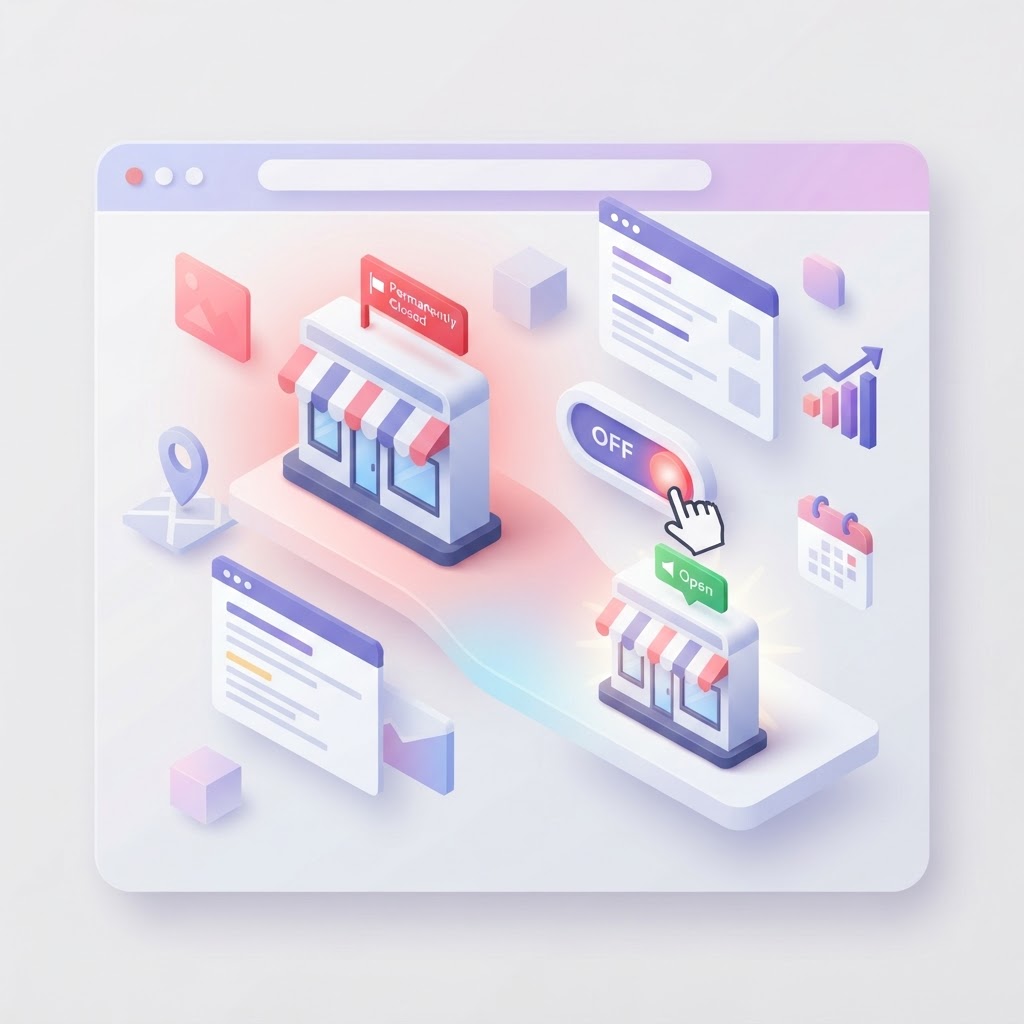
The Panic of the "Permanently Closed" Label
You wake up, check your phone, and see a frantic message from a regular customer asking if you went out of business. You search for your own company on Google, and there it is: a massive red banner declaring your business Permanently Closed. Your stomach drops. Every time someone searches for your services, Google is actively telling them to go to your competitors.
This is a massive local SEO emergency. A google business profile permanently closed mistake destroys your foot traffic, tanks your phone calls, and damages customer trust. But do not panic. You can fix this, and you can usually do it in less than five minutes.
See how clearly your website communicates your location and services.
InspectRank reviews your local visibility signals and gives you a clear, prioritized report.
Get My Free ReportWhy Did Google Mark Your Business as Closed?
Google does not manually verify every business status. Instead, it relies on a mix of AI data scraping, user suggestions, and automated systems. If your business was falsely marked as permanently closed, it almost always comes down to one of these four reasons:
1. Malicious Competitors or Trolls
Google Maps relies heavily on crowdsourced data. Anyone with a Google account can click "Suggest an edit" on your profile and report your business as closed. While Google claims to review these edits, a high-level Local Guide can often push changes through automatically. If a competitor wants to steal your weekend traffic, marking you closed on a Friday afternoon is a dirty but effective tactic.
2. You Moved Locations Incorrectly
If you recently moved your business to a new address, you might have created a brand new Google Business Profile instead of updating your existing one. When Google's algorithm detects two profiles for the same business at different addresses, it often assumes the old location shut down and slaps a "Permanently Closed" label on it. Customers searching for your old address will see the closed banner instead of being redirected to your new spot.
3. Unclaimed Profiles
If you never officially claimed and verified your Google Business Profile, you have zero defense against public edits. Google treats unclaimed profiles as community property, meaning anyone can change your hours, your website, or your operating status without your permission.
4. Third-Party Data Conflicts
Google constantly scrapes the web to verify your business information. If your state's Secretary of State website shows your LLC as inactive due to a missed filing fee, or if a major directory like Yelp mistakenly lists you as closed, Google's AI might automatically update your profile to match.
How to Fix a Falsely Closed Google Business Profile
If your business is still open, you need to remove that red banner immediately. Here is the exact step-by-step process to reopen your listing.
Step 1: Log Into Your Google Business Profile
Make sure you are logged into the Google account that has primary ownership of your business listing. Search for your business name on Google or search for "my business" to bring up the merchant dashboard directly in the search results.
Step 2: Edit Your Profile
Click on the Edit profile button. From the menu that appears, select Business information and then navigate to the Hours tab.
See how clearly your website communicates your location and services.
InspectRank reviews your local visibility signals and gives you a clear, prioritized report.
Get My Free ReportStep 3: Change Your Operating Status
In the "Business hours" section, you will see your current status listed as "Permanently closed." Click the pencil icon to edit this section. Select Open with main hours (or your preferred hours setting) and input your correct operating times. Click Save.
Step 4: Wait for Google to Process the Update
In most cases, your status will update almost immediately. However, Google may place your edit under review. If your edits stuck in pending for more than 48 hours, you will need to contact Google Business Profile support and provide proof that you are operational, such as a photo of your storefront with a current newspaper or a recent utility bill.
What to Do If You Actually Moved
If you moved to a new office or storefront, do not just mark your old profile as permanently closed. That creates a dead end for your customers. Instead, you need to properly manage changing your business address on Google.
Update the address on your existing, verified profile. Google will review the change (and may require you to re-verify the new location with a video upload). Once approved, your profile will move to the new map pin, keeping all your hard-earned reviews and SEO authority intact. If a duplicate "closed" profile was created at your old address, you can contact Google support to merge it with your active listing.
How to Protect Your Profile from Future Attacks
Recovering your profile is only half the battle. You need to lock down your listing so this does not happen again.
- Claim and Verify: If you haven't already, claim your profile. Verified owners receive email notifications when Google accepts a suggested edit, giving you a chance to reverse it quickly.
- Monitor Your Email: Google will email you if someone suggests an edit to your hours or status. Do not ignore these emails. If you catch a malicious edit early, you can reject it before it goes live.
- Maintain NAP Consistency: Ensure your Name, Address, and Phone number are identical across your website, social media, and local directories. When Google sees consistent data everywhere, it is less likely to trust a random user's suggestion that you closed down.
If you suspect a specific competitor is repeatedly targeting your listing, you need to learn how to stop competitors from changing your Google Business Profile. Document the unauthorized changes, take screenshots, and escalate the issue to Google support through the Business Profile Help Community.
The Bottom Line
A "Permanently Closed" label is terrifying, but it is usually a quick fix. By claiming your profile, keeping a close eye on your email notifications, and understanding how to quickly toggle your operating status back to "Open," you can protect your local search visibility and keep your customers walking through the front door.
Sources & references
See what InspectRank finds on your website
Get a clear report covering website SEO, technical health, local visibility and AI search readiness.
Get My Free ReportRelated guides

Review Bombing Recovery: How to Protect Your Local SEO During a Viral PR Crisis
A sudden influx of fake 1-star reviews can destroy your local search rankings overnight. Learn the exact step-by-step playbook to document the attack, report fake reviews to Google, and protect your local SEO during a review bombing crisis.
Mall and Plaza SEO: How to Rank When Your Business is Inside Another Building
Struggling to rank your retail store or food stall inside a mall or large office building? Learn how to use the Google Business Profile 'Located In' feature, fix your map pin, and optimize your local SEO for shared addresses.

What Happens to Your SEO When a Key Employee Leaves? Handling Practitioner Profiles
When a key doctor, lawyer, or stylist leaves your practice, their Google Business Profile goes with them. Learn how to handle practitioner listings, protect your reviews, and prevent former employees from ruining your local SEO.
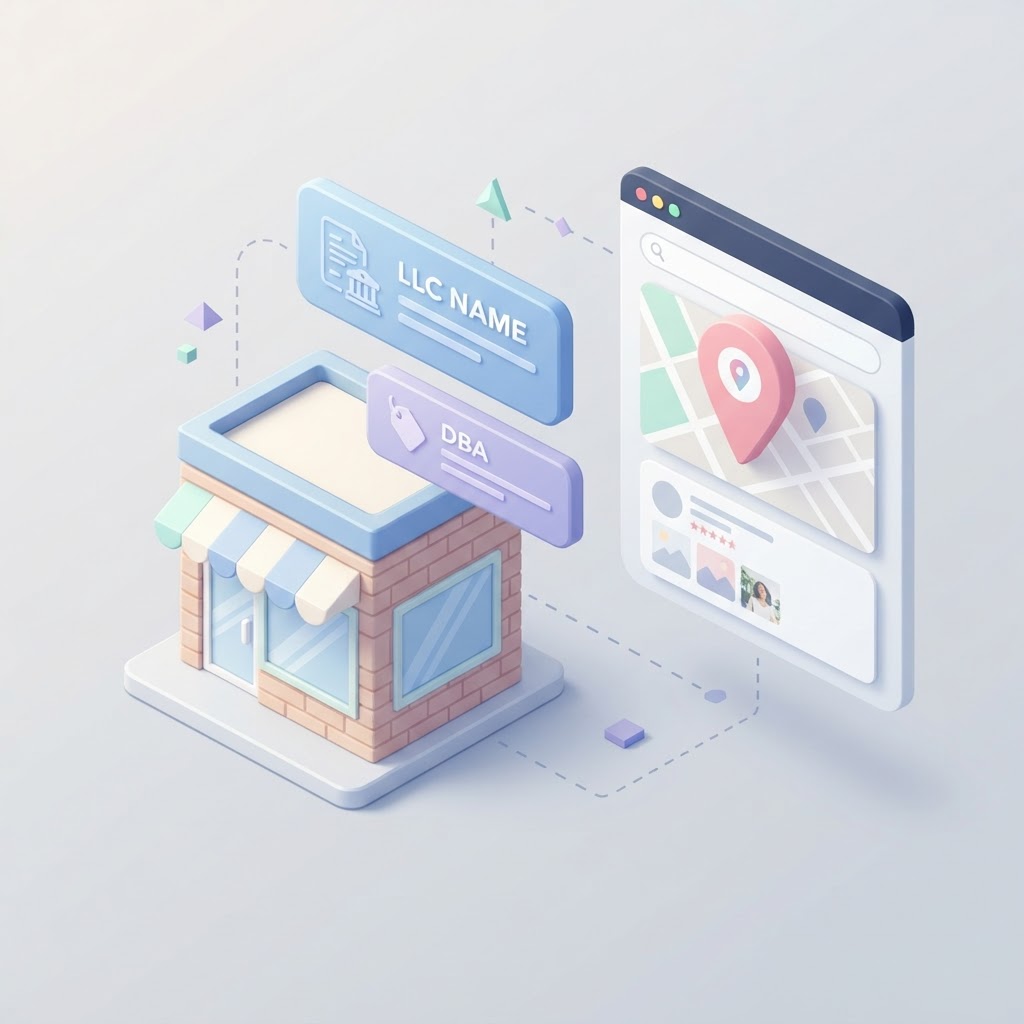
DBA vs. Legal Name: How to Manage Your Business Name for Local SEO
Should you use your LLC or DBA on your Google Business Profile? Learn how to manage your business name for local SEO without getting suspended.
Google Business Profile Accessibility Attributes: A Guide for Brick-and-Mortar SEO
Learn why Google Business Profile accessibility attributes are critical for local SEO, how to add them, and why leaving them blank costs you foot traffic.